
Siebenuhr Mk I User Guide
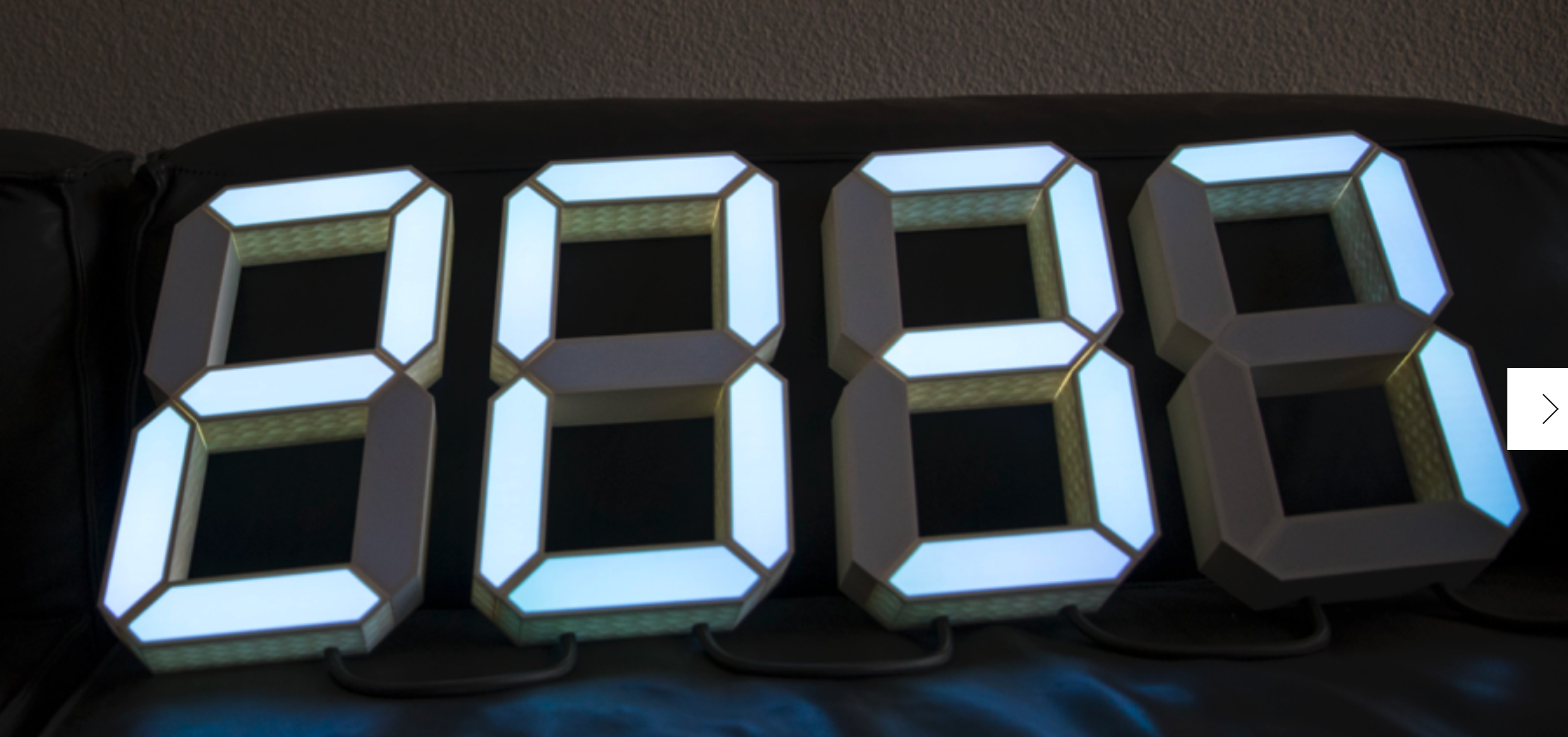
Initial Setup
-
Connect power — Plug the power adapter into the controller box, then into the wall. The clock has no power switch and will wake up immediately, displaying "7uhr".
-
WiFi setup — After a few seconds, the clock displays "WiFi" and creates an access point called SiebenuhrAP.
-
Connect to the access point — Use your phone or laptop to connect to "SiebenuhrAP". A configuration page should open automatically.
-
Configure WiFi — If the page doesn't open, go to http://192.168.4.1 in your browser. Select "Configure WiFi" and enter your network name and password.
-
Done — After saving, the clock connects to your network, fetches the time via NTP, and starts displaying the current time.
Daily Operation
Adjusting Brightness
Turn the rotary knob on the controller box to adjust brightness.
Color Wheel Mode (Default)
When powered on, the clock runs in Color Wheel mode. The color changes gradually throughout the day:
- Midnight — Blue
- Morning — Red
- Evening — Green
Setting a Fixed Color
- Press the knob once. The clock shows "huE" for 3 seconds.
- Turn the knob to select your color.
- Press the knob again to confirm. The clock shows "brit" and returns to brightness control.
The clock is now in Solid Color mode and will stay on your chosen color.
Returning to Color Wheel Mode
Turn off the clock for 3 seconds, then power it back on. It will restart in Color Wheel mode.
Reconfiguring WiFi
If you need to change WiFi networks:
- With the clock displaying the time, press and hold the knob for 5 seconds.
- The clock displays "WiFi" and enters setup mode.
- Connect to "SiebenuhrAP" and configure as during initial setup.
Home Assistant Integration
The Siebenuhr integrates with Home Assistant for advanced control:
- Adjust brightness and color remotely
- Send notifications to the display
- Monitor power consumption
For Home Assistant setup, use the open source ESPHome firmware:
github.com/soliddifference/siebenuhr_esphome
Installation Tips
- Use the included mounting template for accurate screw placement
- Each digit requires 2 screws (8 total for the clock)
- The controller box cable is 1.6m — plan placement accordingly
- For thin walls with rear access, cables can be hidden by drilling through
Support
Contact us via soliddifference.com/contact