
Update your SIEBENUHR firmware directly from your browser.
Before You Begin
- Use a data-capable USB cable (not charge-only)
- Use Chrome or Edge on desktop (Web Serial required)
- Close any other apps that might be using USB serial ports
Select Your Device
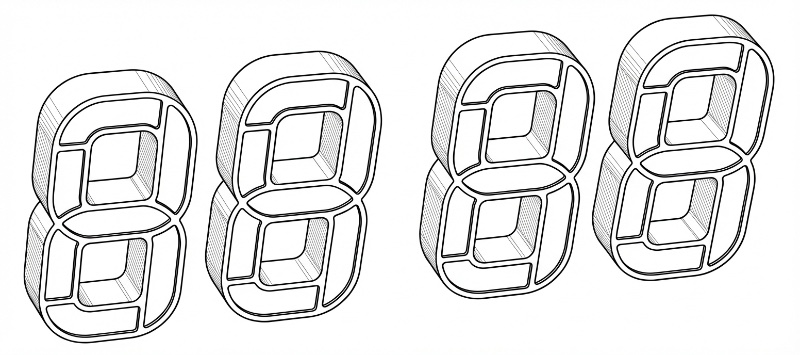
Built-in WiFi configuration portal. No smart home required.
For Home Assistant. OTA updates and light controls via HA.
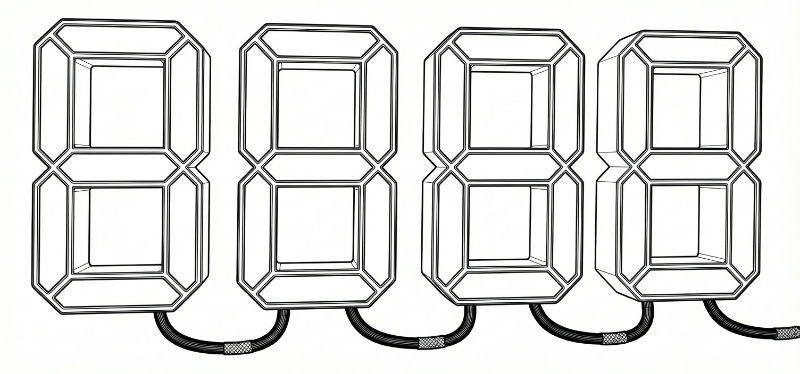
SIEBENUHR Regular
Full-size wall clock with separate controller, 17 LEDs per segment
View in store →Built-in WiFi configuration portal. No smart home required.
For Home Assistant. OTA updates and light controls via HA.
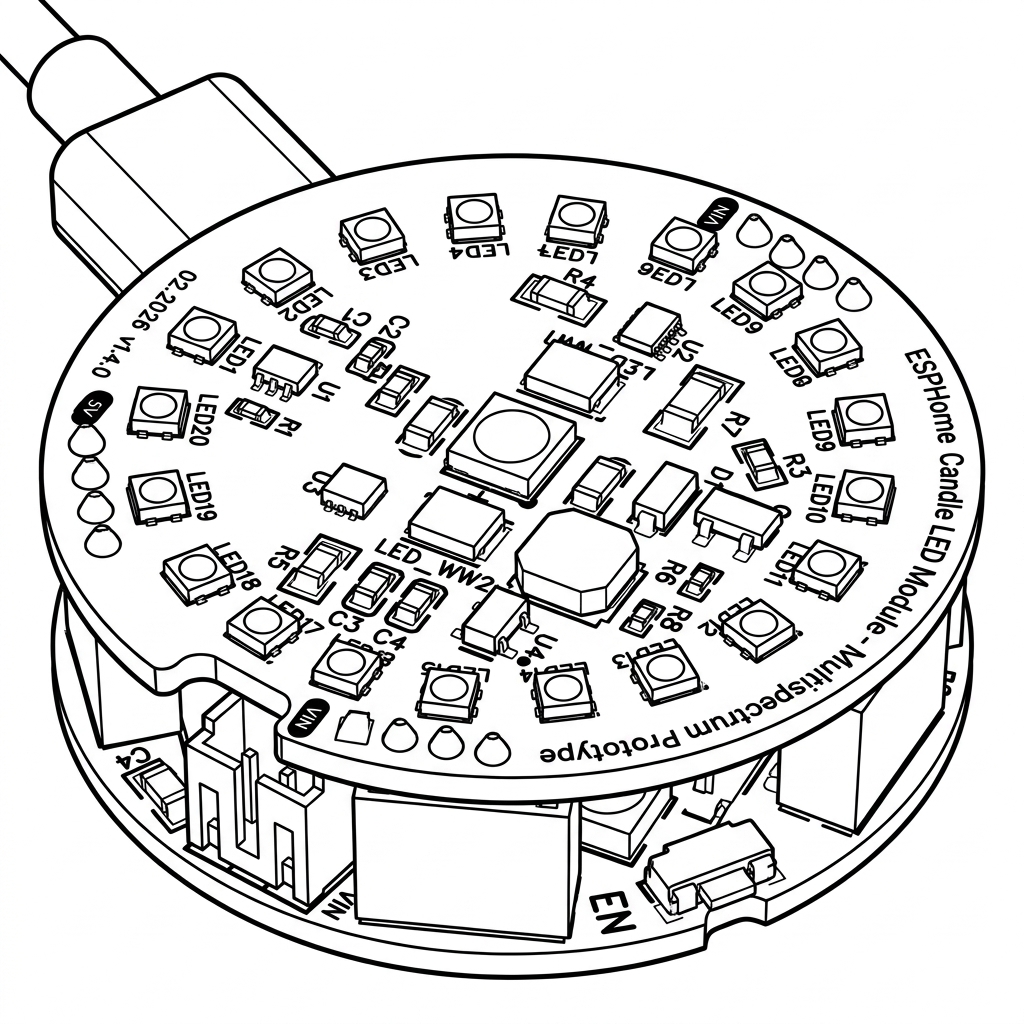
ESP Candle
Tea-candle-sized ESP32-S3 smart light. RGB, warm white, deep red, and UV LEDs; runs from USB-C or 6–20V DC.
View in store →Primary path. Home Assistant via ESPHome with OTA updates and light controls.
Firmware coming soon
Optional PlatformIO demo firmware. No smart home required.
Firmware coming soon
When prompted, select the USB port of your clock.
Powered by ESP Web Tools
About the Firmware Options
Standalone — The default firmware with a built-in WiFi configuration portal. On first boot, the clock creates an access point named SiebenuhrAP. Connect to it to configure WiFi and timezone. Source: github.com/soliddifference/siebenuhr
ESPHome — For Home Assistant users. Integrates your clock as an ESPHome device with OTA updates, WiFi config, and light controls through Home Assistant. Source: github.com/soliddifference/siebenuhr_esphome
ESP Candle — A tea-candle-sized ESP32-S3 smart light. Its primary firmware is the ESPHome build for Home Assistant; an optional standalone PlatformIO demo is also offered. Source: github.com/PixelTheater/espcandle-demo
Release History
| Version | Date | Notes |
|---|---|---|
| Loading... | ||
Manual Download
For advanced users who prefer to flash manually with esptool:
Mini Clock
- Loading...
Regular Clock
- Loading...
Mini Clock
- Loading...
Regular Clock
- Loading...
ESPHome
- Loading...
Standalone
- Loading...
Flash command
# Standalone firmware
esptool.py --chip esp32 --port /dev/ttyUSB0 write_flash 0x0 firmware-mini-1.1.1.bin

# ESPHome firmware
esptool.py --chip esp32 --port /dev/ttyUSB0 write_flash 0x0 firmware-mini-esphome-1.0.0.bin
Troubleshooting
Device not detected?
- Ensure you're using a data USB cable (not charge-only)
- Try a different USB port
- On Windows, install the CP2102 driver
- On Linux, add your user to the
dialoutgroup:sudo usermod -aG dialout $USER
Problems setting WiFi?
Sometimes the wifi config menu option doesn't appear (because the device is not ready), or the WiFi scan or update step might get stuck. Some versions of Chrome might also have reliability issues with the Web Serial API. Here are some things to try:
- Try restarting the device by removing USB.
- Reconnect, and reload this page.
- Open "Flash Firmware" again, select the USB port of the clock.
- Select "Configure WiFi" again. If you don't see the option, close the menu and try again.
Flash failed and device is not showing up?
- Hold the BOOT button (the button farthest from the USB-C port) while connecting USB, then release
- Try clicking "Install" again while holding BOOT
- Make sure no other application is using the serial port